Expeditions
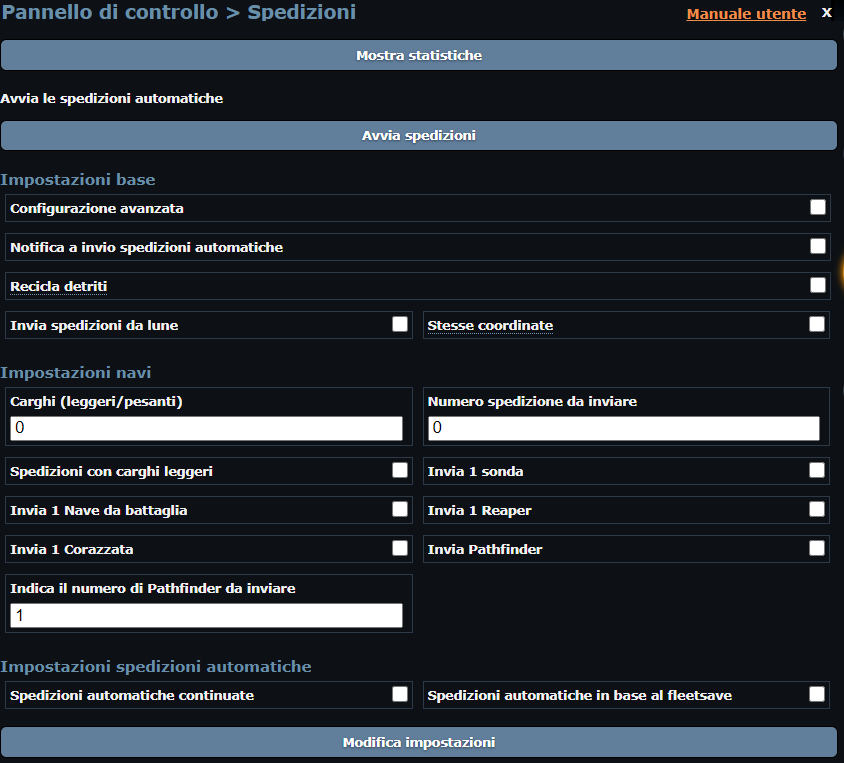
This panel is divided into 4 main sections:
- Statistics;
- Basic settings;
- Ship settings;
- Automatic expedition settings.
1. Statistics
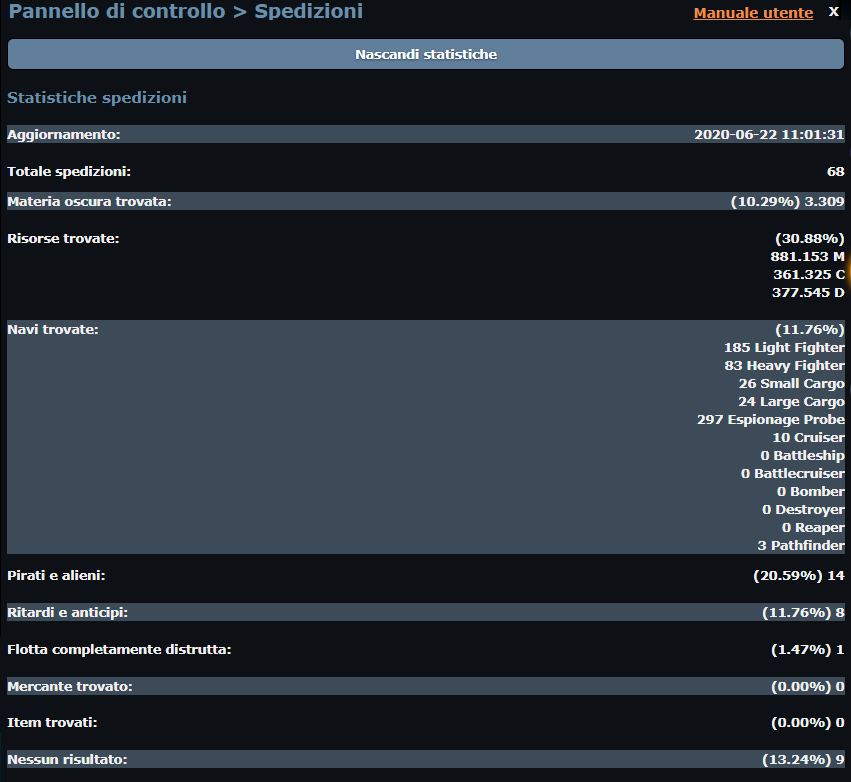
In this section, clicking the Show statistics button displays the saved expeditions and their statistics.
2. Basic settings
In this section you can enable several settings:
Advanced configuration
Removes some flags from the expedition panel and enables the advanced expedition module.
Recycle debris
A fully-fledged mode that goes through:
- sending the expeditions;
- enabling recycle mode;
- reading the messages;
- reading the attack messages;
- saving the coordinates from alien/pirate messages;
- a repeating cycle:
- redirect to the planet closest to the coordinates on the galaxy page;
- reading the debris;
- sending pathfinders when there is debris;
- ending recycle mode;
- sending the expeditions again.
Notify when automatic expeditions are sent
Sends a Telegram notification after the expeditions have been sent.
Send expeditions from moons
Only available in simple mode: sends expeditions from moons only.
Same coordinates
Only available in simple mode: sends the expeditions from the same coordinates.
3. Ship settings
Simple expedition
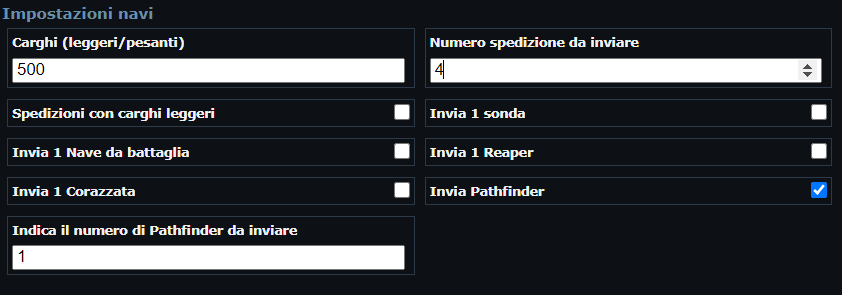
Cargo ships (light/heavy)
A whole number indicating how many cargo ships to send.
Number of expeditions to send
A whole number indicating how many expeditions the bot must send.
Expeditions with light cargo ships
If selected, light cargo ships are sent.
Send 1 probe / 1 battleship / 1 reaper
If selected, the indicated ship type is added to the expedition. For example, with 'Send 1 probe' a probe is included in the expedition.
Send pathfinders
If selected, a box appears where a whole number indicates how many pathfinders to add to the expedition.
Advanced expedition
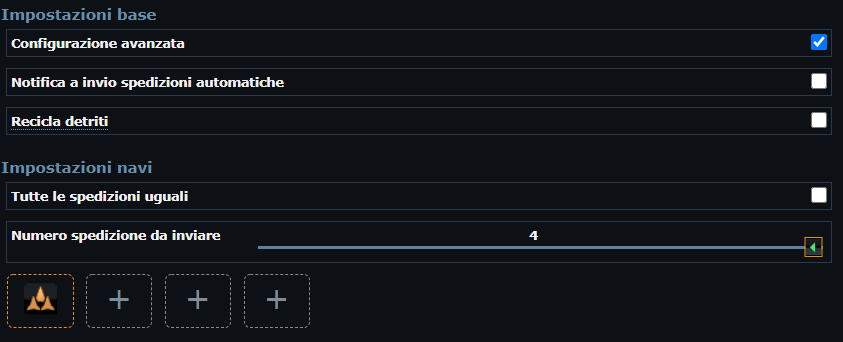
All expeditions identical
If selected, you can configure one expedition template replicated across all the chosen slots.
Send expeditions (+1 SS / -1 SS) each expedition
Only selectable when the previous option is enabled. Sends the expeditions to the starting coordinates and then alternates between different systems (+1 / -1).
Number of expeditions to send
The number of expeditions to send each time.
Through the advanced configuration you can manage the expedition template: it helps you add the various ship types and gives a rough estimate of what you may find.
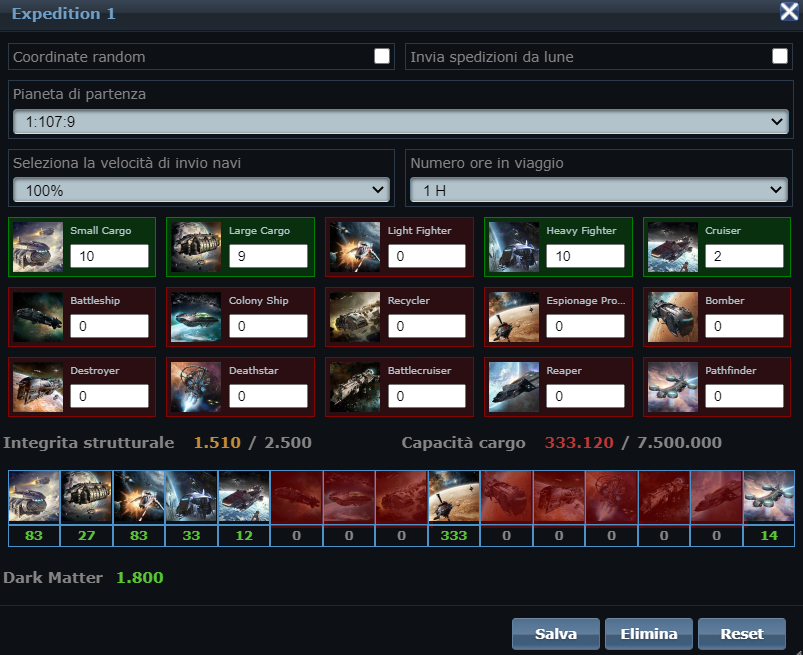
4. Automatic expedition settings

Continuous automatic expeditions
A continuous automatic mechanism: whenever an expedition ends, it is sent out again.
Automatic expeditions based on the fleetsave
Works like "Continuous automatic expeditions", but the expeditions are sent based on the fleetsave return.
Minimum fleet time to start the automatic missions
With the following time markers you can set the minimum fleetsave return time:
- s means seconds (e.g. 100s for 100 seconds);
- m means minutes (e.g. 100m for 100 minutes);
- h or o mean hours (e.g. 100h, 100o for 100 hours);
- d or g mean days (e.g. 100d, 100g for 100 days).
Example
With 2o the bot sends automatic expeditions only while the fleetsave returns in more than 2 hours: if the fleetsave comes back in 1 hour and 59 minutes, the bot stops sending expeditions.